
Book a Ride
Use the platform embedded below on our website, call or text us, or use the mobile app and web portal to schedule, manage, and track your rides.
See our How-To Guides below:
About the GoDurham ACCESS App
The GoDurham ACCESS App, managed by Spare, allows eligible riders in the City and County of Durham to schedule, manage, and track their ADA paratransit or other demand response trips.
Book a Ride Here
Book a ride directly on our website using the embedded platform. Allow the platform to access your location, log in, and begin managing your rides.
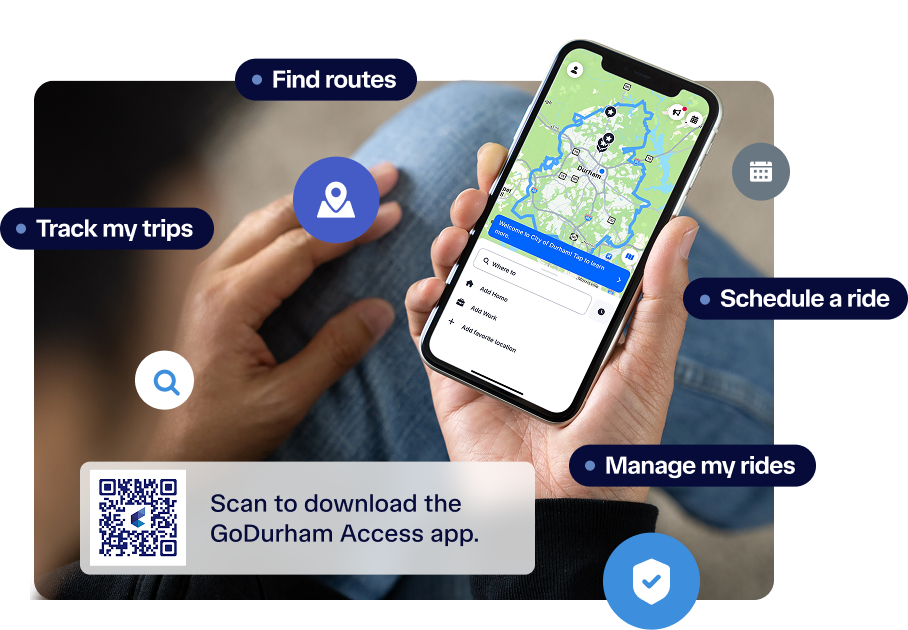
Book a Ride with the Mobile App
Eligible GoDurham ACCESS and Durham County ACCESS riders can use the GoDurham ACCESS app to make it easy to schedule, manage, and track trips. The app also supports ride booking for GoDurham Connect.
Call us at (919) 560-1551 or text us at (984) 342-4446 to make a reservation and manage your trips.
Download the App
User Guide to the GoDurham ACCESS App
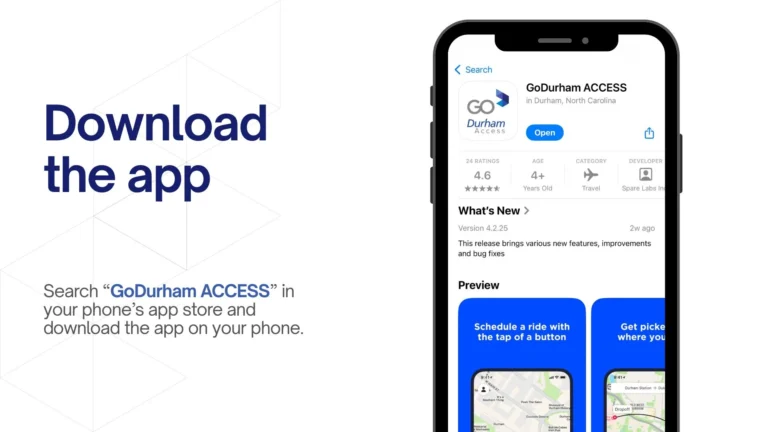
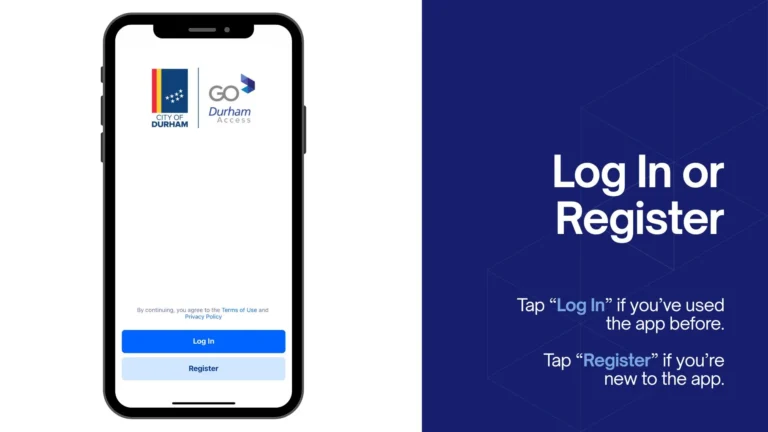
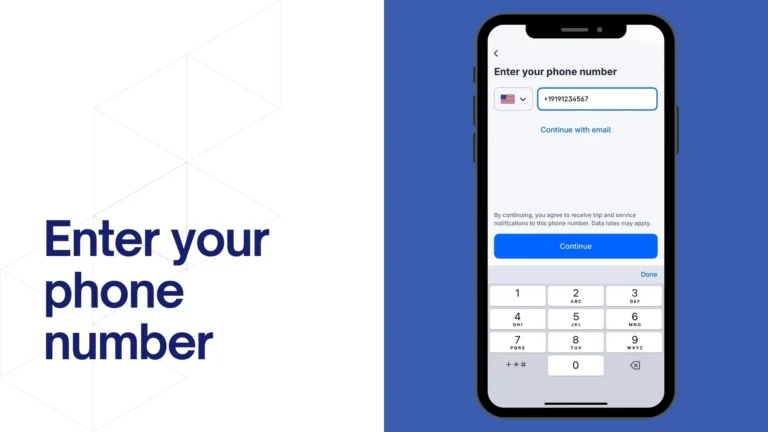


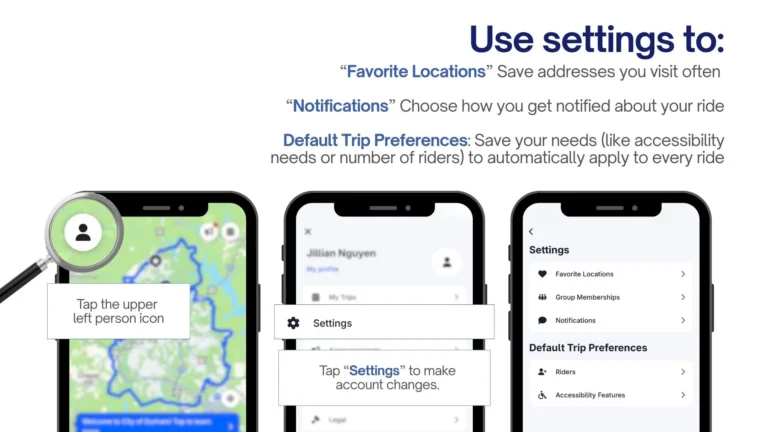
1) Download the app:
- Tap the button below to download the GoDurham ACCESS app from your mobile device’s app store.
- Allow the app to access your location when prompted.
- Open the app and tap “Register” or “Log In” using your phone number.
- Enter your phone number.
- You’ll receive a text message with a 5-digit verification code.
- Type the code in the app to confirm your phone number.

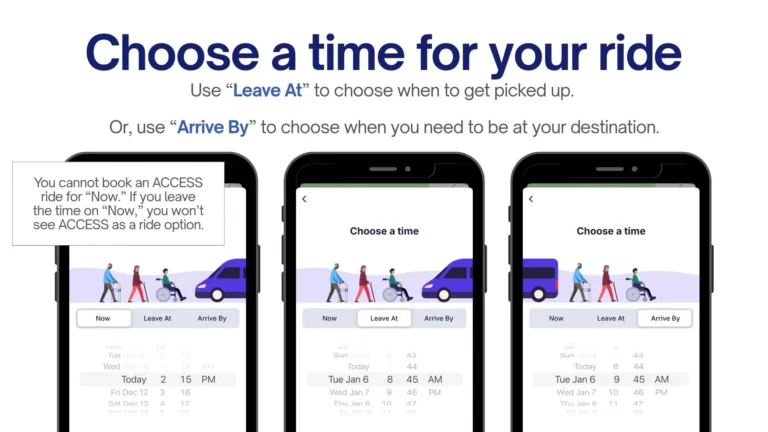
2) Request a ride:
- Tap the clock icon next to where it says “Where to, [Your Name]?” on the app’s home screen.
- Choose a time for your ride. Use “Leave At” to choose when to get picked up or use “Arrive By” to choose when you need to be at your destination.
- GoDurham ACCESS or Durham County ACCESS rides cannot be booked for “Now.” If you leave the time on “Now,” these will not show up as ride options in the following steps. They must be booked 1-14 days in advance.
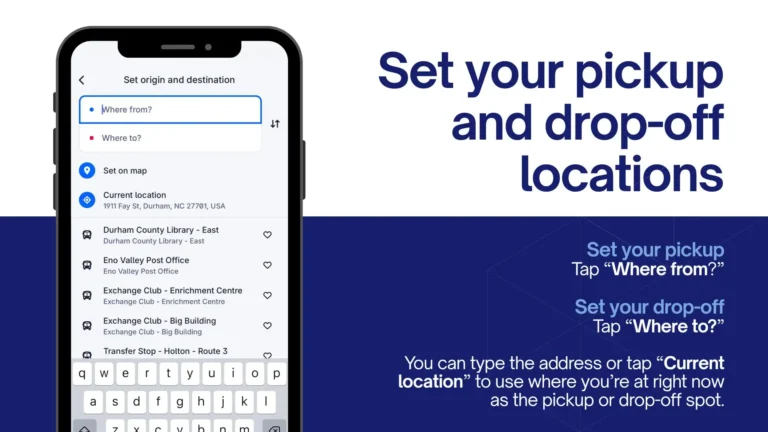
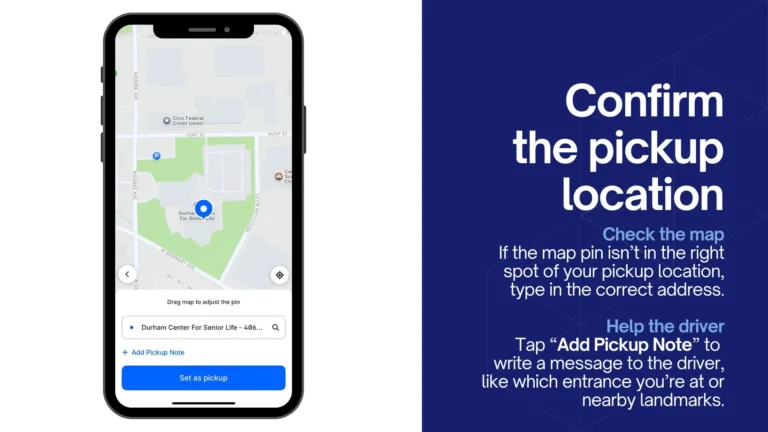
3) Enter your pickup and drop-off locations:
- Tap “Where from?” to set where you want to be picked up.
- Tap “Where to?” to set where you want to get dropped off.
- Confirm your pickup location. Check the map to ensure the pin is in the right spot of your pickup location and retype the address if necessary.
- Tap “Add Pickup Note” to add special instructions to help the driver find you, such as which entrance you’re at or nearby landmarks.
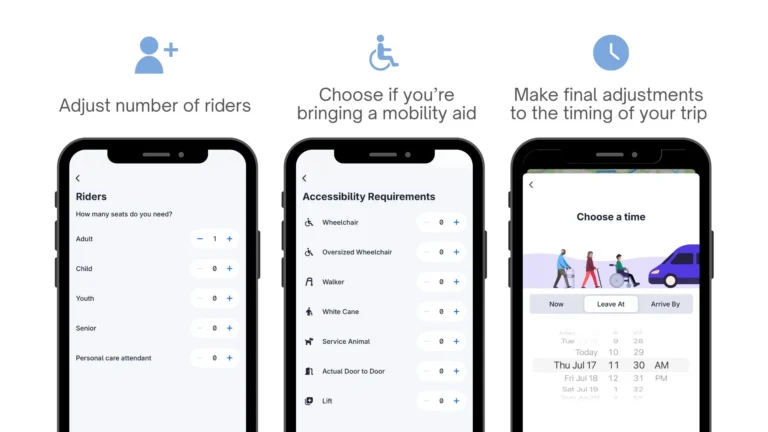
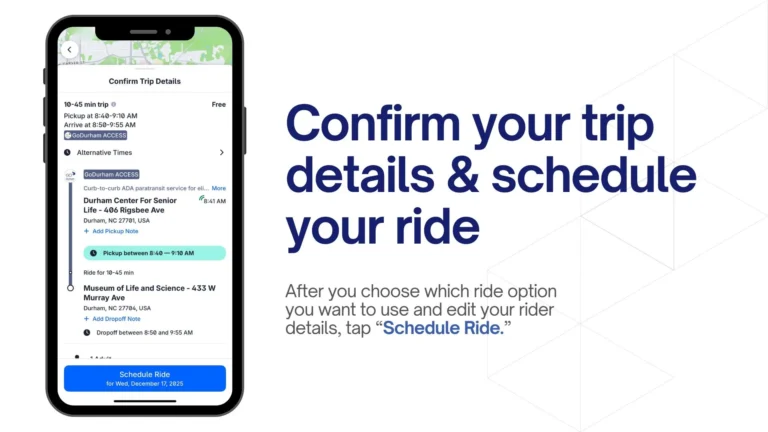
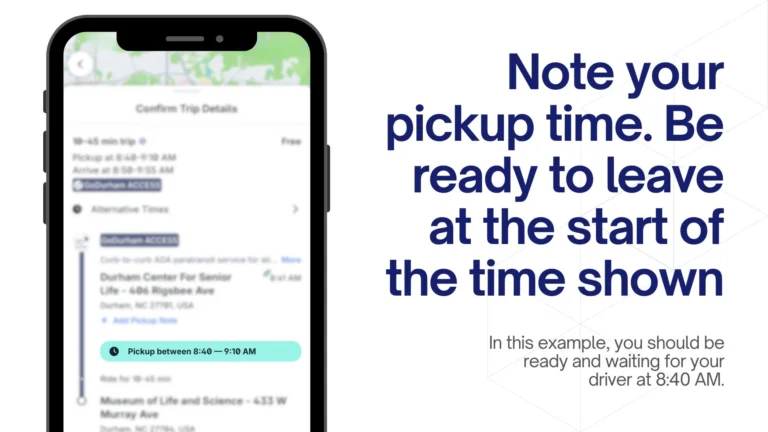
4) Adjust ride options and request your ride:
- After confirming your pickup and drop-off locations, tap which ride option you want to select.
- On the bottom half of the screen, you can tap on each icon to edit rider details such as:
- Number of riders
- If you’re bringing a mobility aid
- The time of your trip
- Once you’ve set your preferences, tap “Schedule Ride.”


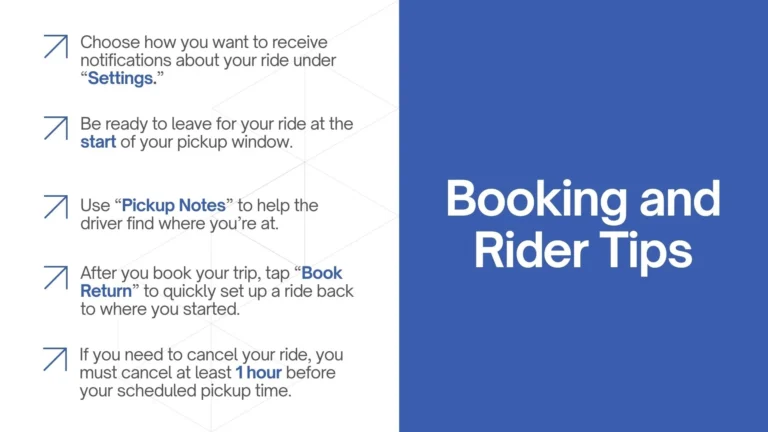
5) Choose next steps for your ride:
After booking, you can choose:
- “Book Return” to quickly set up a ride back to where your trip started.
- “Book Again” to repeat the same trip on a different day.
- “Cancel Trip” if needed. If you cancel a ride, the app will prompt you to provide a reason for the cancellation.
Need a Visual Guide? Watch the Video
This step-by-step video shows how to use the GoDurham ACCESS app from start to finish. It walks through logging in, setting up your account, choosing your ride options, and scheduling your trip so you can follow along at your own pace.
To book a ride, call or text us, or use the mobile app and web portal to schedule, manage, and track rides.